 Penstock
Guide / Draw and edit
The BPMN editor
The BPMN editor draws a process and saves every change into the file itself.
What it is
A BPMN file is a text file (XML) that holds two things: the meaning of the process and where every box is drawn. The BPMN editor shows the picture and edits the file for you. You never have to touch the XML, but you always can.
The editor is bpmn-js, the same drawing library the Camunda Modeler uses. So the drawing and the files are the ones you already know. Penstock adds the tool around it: checks, deploy, links to your code, and a project model.
Open a diagram
Open a file with the extension .bpmn, .bpmn.xml or .bpmn20.xml. The diagram opens straight away. There is no setup screen. Change something: drag a box, rename a task, add an element. The change is already in the file.
Open it in your tool
JetBrains
Double-click the file in the Project view or in the Penstock tool window. Two tabs at the foot of the editor, BPMN Editor and Text, switch between the picture and the raw XML. See The editor in the IDE.
VS Code
Open the file from the Explorer. A .bpmn or .bpmn20.xml file opens in Penstock BPMN Editor, a .dmn file in Penstock DMN Editor and a .form file in Penstock Form Editor. There is no second tab for the XML. Penstock: Open as text opens the same file in VS Code's text editor beside the diagram. See Where things are in VS Code.
Command line
Not available on the command line. The command line has no editor. Use penstock show to list a diagram, penstock edit to change it and penstock export to draw it.
What you see
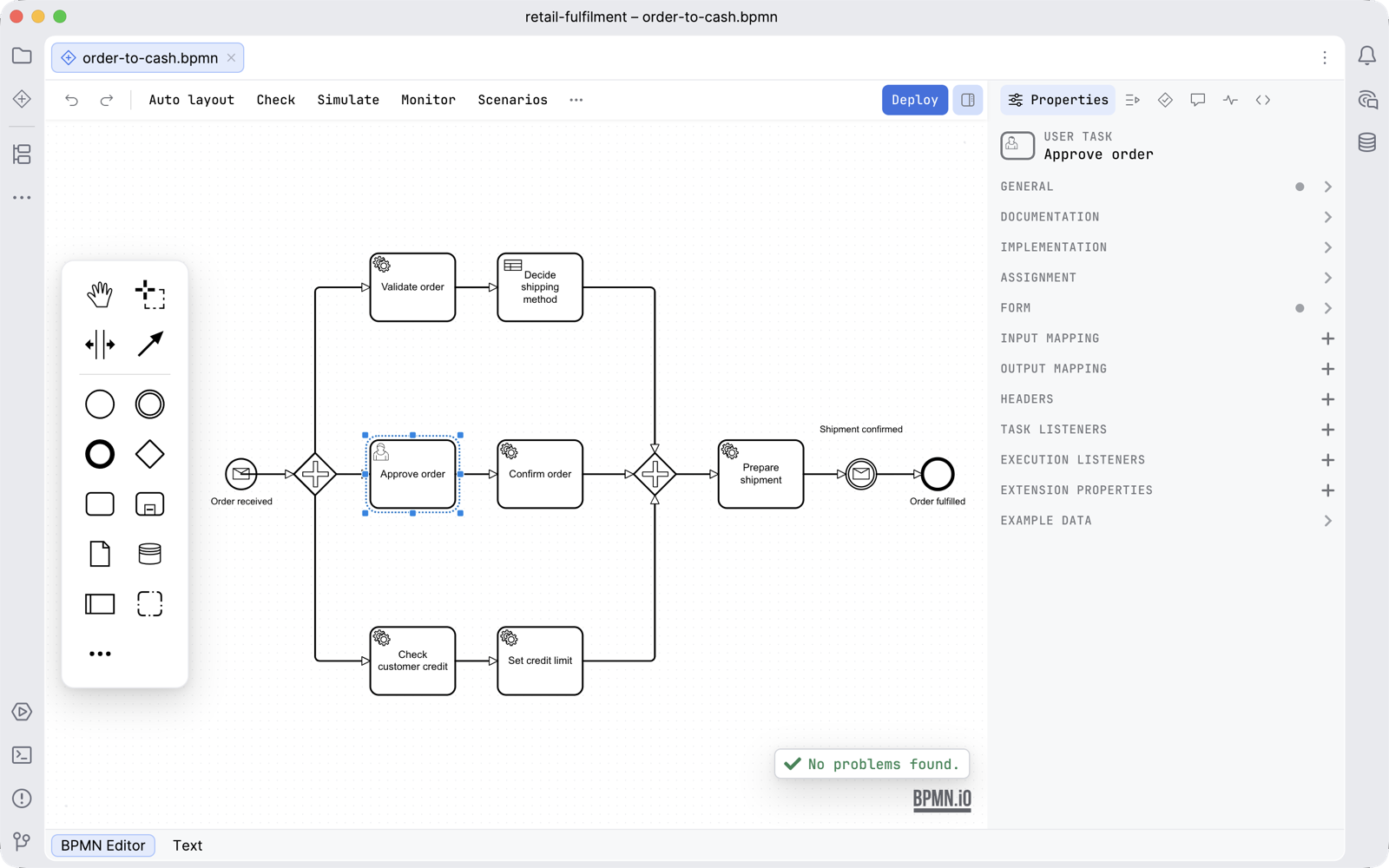
| Part | What it does |
|---|---|
| Toolbar | Actions along the top. See The toolbar and the More menu. |
| Palette | The floating island beside the canvas. Drag elements from it. See BPMN elements. |
| Canvas | The drawing. Zoom and move it with the mouse or the trackpad. The keys are in the shortcuts of your tool. |
| Sidebar | The column on the right, with a tab for the properties, scenarios, problems, comments, Monitor and code. See The sidebar. |
| Properties panel | The first tab of the sidebar: the settings of the selected element. See The properties panel. |
| Problems pill | A small pill at the bottom of the canvas that counts the findings of the check, or says No problems found. See Diagram check. |
| Check card | A card at the bottom right that lists the first problems, while Check is on. See Diagram check. |
| Text tab | The raw XML of the same file, one tab away. See Editing a diagram. |
Saving
There is no save button. Every change is written to the file at once. The new content goes to a temporary file next to it, which then replaces the real file in one step, so a crash cannot leave half a file. Other views of the same file, and version control, see the change immediately.
A saved diagram says exporter="Penstock" and the version of Penstock that wrote it, the way a file from Camunda Modeler says which tool and version wrote it. Opening a file changes nothing in it.
When the file changes outside the editor
Penstock watches the file. If something else changes it, for example a git checkout, a formatter or a text view of the same file, the editor asks what to do:
- Reload takes the new content. Unsaved edits on the canvas are dropped.
- Keep Editing keeps your version. Your next change then overwrites the outside change.
Renaming or moving the file needs no answer.
Themes
By default the editor takes the colours of your tool, light, dark or any theme you have installed, including an accent colour you have changed. To pick a theme of its own, use Editor theme in the More menu: the first row follows your tool's theme, and Light, Dark and Dracula are the editor's own. The choice is yours, not the project's, and holds in every tool you use. If you change the theme while a diagram is open, the diagram redraws and keeps your zoom, your pan and your selection. If you want a hand-drawn look, use Sketchy drawing in the More menu. It changes only how the diagram looks on your screen, never the file.
The bpmn.io logo in the bottom corner has to stay visible. The licence of the drawing library requires it. Penstock recolours it so it stays readable, and never hides it.
The first-run tour
The first time the editor opens, a tour of six short steps points at the palette, the properties panel, the check, the tool that lists the whole project, Deploy and the More menu. It is shown once, and that is remembered in ~/.penstock/preferences.json. Show the tour again in the More menu replays it.
Which engine is this diagram for?
Penstock finds out for you. It reads engine in the nearest penstock.yaml. If there is none, it reads the diagram: the execution platform the Camunda Modeler wrote into it, or the zeebe: and camunda: attributes it already has. Only an empty new diagram asks, once, in a line above the canvas. See Engines.
Hover for a summary
Rest the pointer on an element for half a second. A card shows its id, type, name and connections. It also shows what runs it (a class, a delegate or a job type), or on a user task the assignee and candidates. With Pro it adds the tests that name the element and the variables it sets and reads. See Code links.
Common problems
- The editor is blank.
- The view that draws it could not start. See the troubleshooting page of your tool: Troubleshooting.
- I only see XML, there is no picture.
- Switch to the editor view of the file. See "Open it in your tool" above.
- A reload dialog appears and I do not know why.
- Something changed the file on disk: a Git operation, a formatter or another tool. Choose Reload to see it.
- My change disappeared.
- You chose Reload after an outside change while you had edits on the canvas. Use the history of your tool or of Git to get the earlier file back.
- A file called
.formopens in the wrong editor. - Penstock opens a
.formfile only if it is a Camunda Form. See The form editor.