 Penstock
Guide / Check your work
Validation with bpmnlint
bpmnlint checks that a process is modelled correctly, and Penstock runs it for you with nothing to install.
What it is
bpmnlint is a well-known tool that finds modelling mistakes in a BPMN file: an event with no outgoing flow, a task with no name, a gateway that splits without saying how. Penstock has it built in. Nothing to install and no paths to set.
See it working
- Open a diagram and draw a task with no name.
- A marker appears on that task. This is the editor marking problems as you draw.
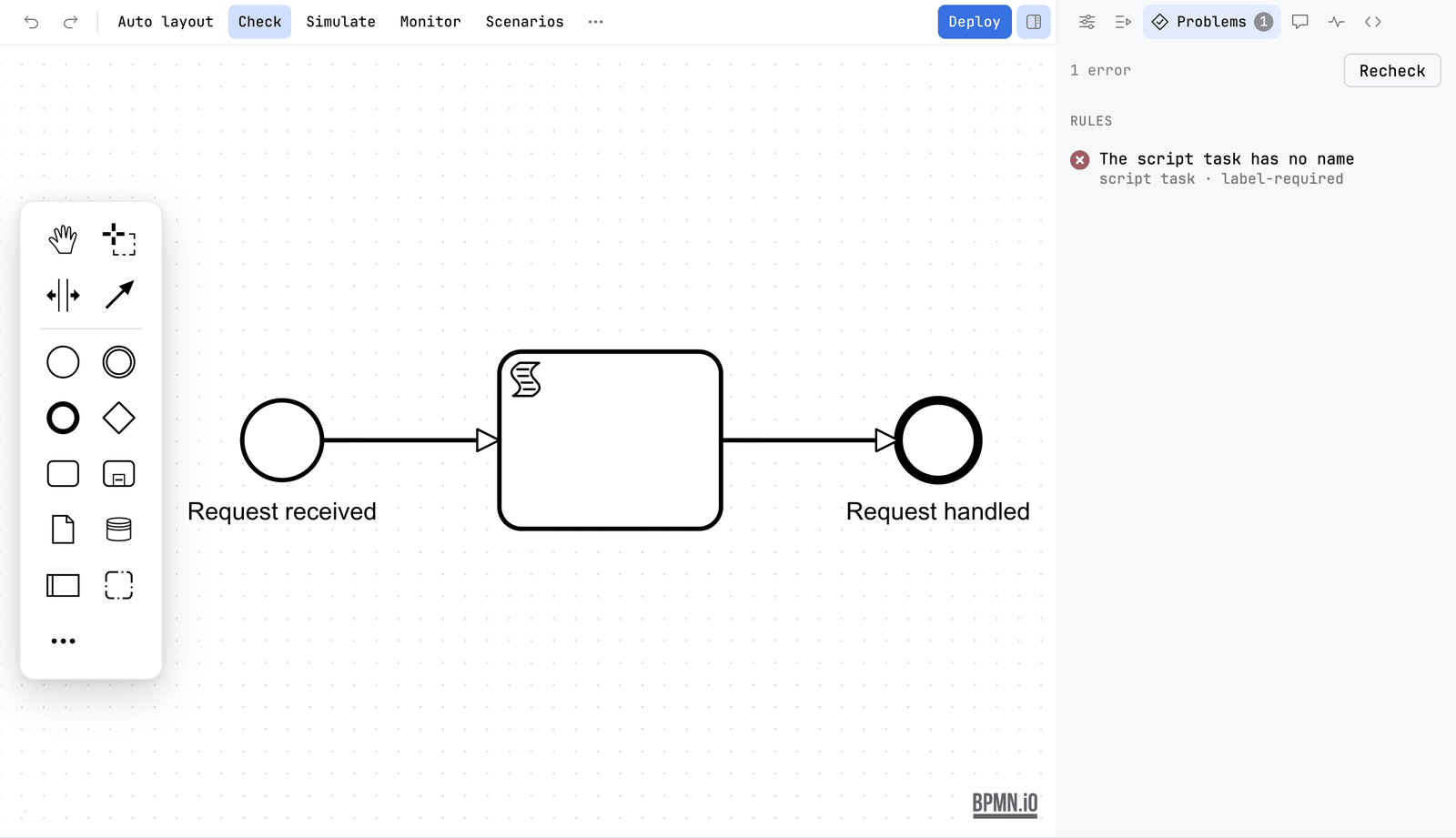
- Press Check. The same finding is listed under Rules, with the rule name
bpmnlint/label-required. - Click the line. The task is selected. Give it a name and the marker goes away.
The same finding is in the Problems tab of the sidebar, beside the drawing problems, with its error or warning icon and the id of the rule. Clicking it selects the element and opens the property that fixes it. See Diagram check.
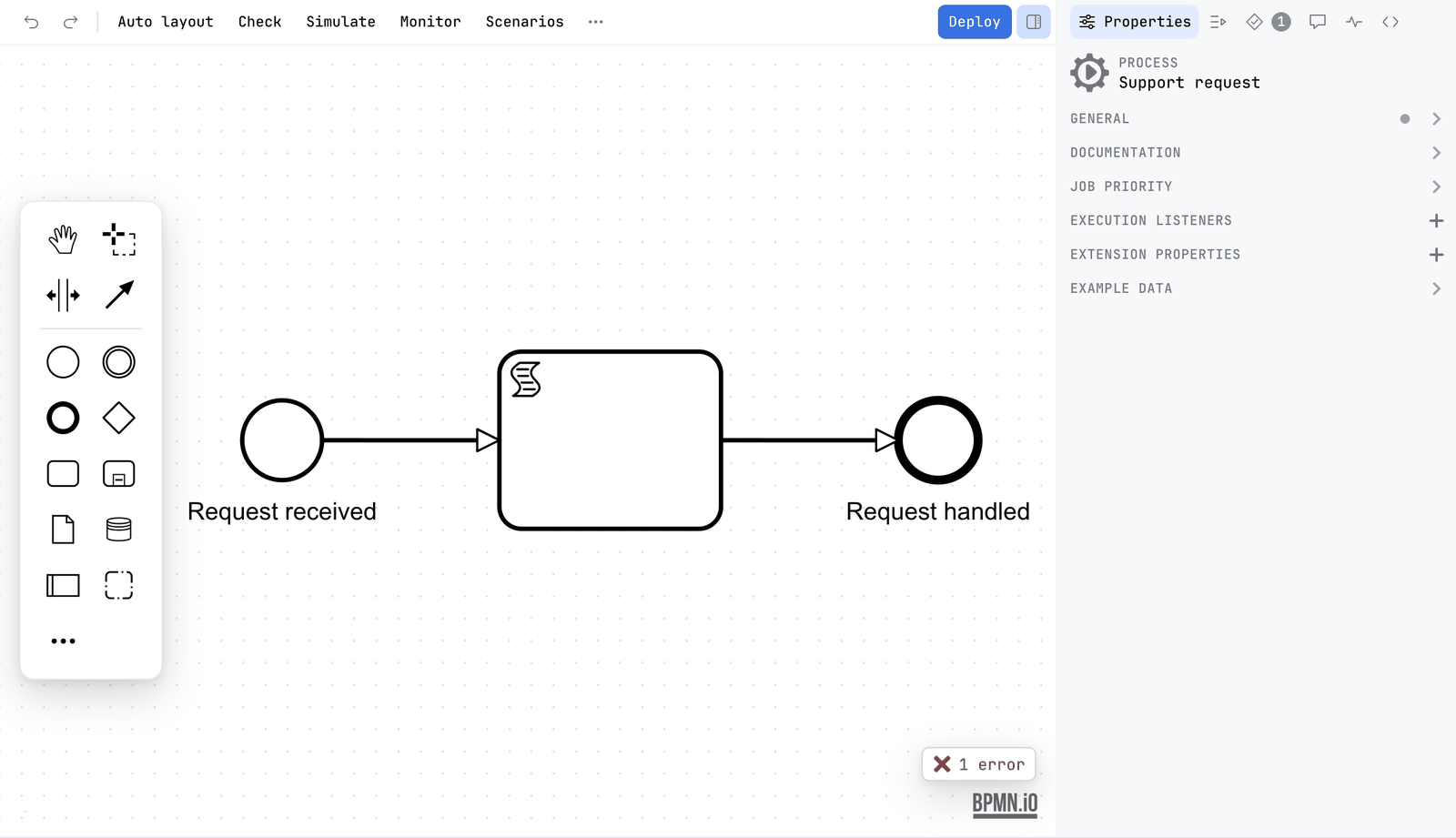
The linting button on the canvas turns the markers off and on. It starts on. It is hidden while a token simulation runs.
Which rules apply
- Without any configuration:
bpmnlint:recommended, bpmnlint's own set. - With a
.bpmnlintrcin the project root: that file replaces the set. The editor and the command line both read it. - With
lint.configPathinpenstock.yaml: that file, relative to the project root. Use it when your rules live elsewhere.
A small .bpmnlintrc:
{
  "extends": ["bpmnlint:recommended"],
  "rules": {
    "label-required": "error",
    "no-implicit-split": "warn"
  }
}
Each rule can be set to error, warn or off. An error makes penstock check fail. A warning is shown as a note. Every rule that Penstock knows has a page: Every rule. Those pages say which level is the default.
Engine compatibility checks
Free
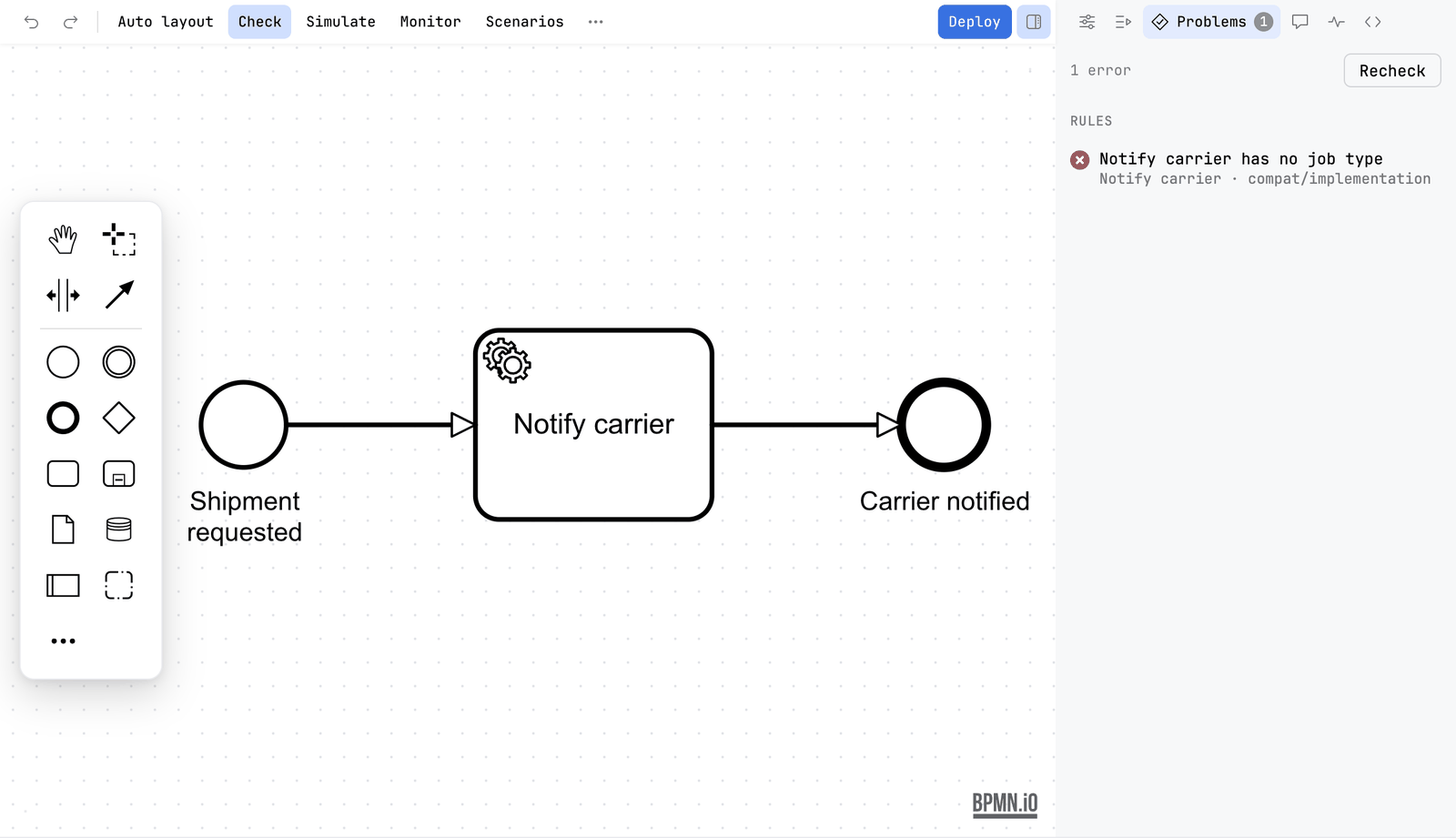
Next to the modelling rules, Penstock checks the diagram against the engine and the version it is written for. It finds what that engine cannot run: a service task with no job type, an element or an expression the chosen version does not support, a process with no history time to live.
- They run on Camunda 7 and Camunda 8 diagrams, in the editor and when you check the whole project. Operaton and CIB seven are checked as Camunda 7.
- The version is the one in the file's
modeler:executionPlatformVersion. Without one, the newest version is used. - Each finding is one plain sentence that names the element: Charge card has no job type, Ad-hoc sub-processes need Camunda 8.7 or newer - this diagram targets 8.6, History time to live is missing. The sentence is the same in the check card, on the canvas and in every report.
- Each finding has the id
compat/<rule>, for examplecompat/implementation. Every rule has a page: see Every rule. - To turn one off, set it to
offin.bpmnlintrcascamunda-compat/<rule>, which is the plugin's own name, or ascompat/<rule>. - A problem that another check already reports on the same element, for example two blank start events, is shown once, by bpmnlint.
On the command line
penstock check runs the same rules as one section of its report, beside the drawing, the engine compatibility rules and, on Pro, the flow analysis. penstock check --only rules runs the rules alone. A rule set to error makes the run fail; a warning is reported as a note.
The older name penstock lint still works and says that it is now penstock check --only rules.
Whole-project checks
The same rules run over every diagram of a project when you check the whole project. Errors fail the check. Warnings are notes. See Diagram check.
Run only the rules
JetBrains
Right-click a file or folder in the Penstock tool window and choose Run Penstock | Check. It runs the whole check, and the rules are one section of it.
VS Code
Press Check in the editor, and the rules are one section of the card. In the Penstock view, choose Run Penstock | Check, or run penstock check . on the command line.
Command line
penstock check --only rules .This runs the same rules as one section of the check. penstock lint still works in this release and prints that it is now penstock check --only rules.
Custom rules from a plugin
A custom rule comes from a bpmnlint-plugin-<name> package.
- Add the package to your
package.jsonand runnpm install. The command line now finds it innode_modules. It needs no installed bpmnlint. - For the editor, build a bundle of your rules with
bpmnlint-pack-config. - Point to the bundle in
penstock.yaml. Rebuild it whenever the rules change.
lint:
  configPath: .bpmnlintrc
  clientBundlePath: .bpmnlint/client.bundle.js
The editor cannot read node_modules. It loads the bundle, not the .bpmnlintrc. Without the bundle the check says The bpmnlint rules could not run.
What you see
- Markers on the elements a rule reports, while you draw.
- The same findings under Rules in the check card, each with the rule name.
- In a whole-project report, lines such as
note bpmnlint/label-required: ...under the file.
Common problems
- My plugin rule works in the terminal but not in the editor.
- Build the bundle and set
lint.clientBundlePath. See above. - A rule I switched off still reports.
- Check that
.bpmnlintrcis in the project root, or thatlint.configPathnames it. Whenlint.configPathis set,penstock doctorprints the path and says if it is missing. - I have no markers on the canvas.
- The linting button on the canvas may be off. Press it once.
- The whole-project check does nothing.
- Your tool may need the project to be trusted before it runs commands. See the troubleshooting page of your tool.