 Penstock
Guide / Share and move
Export
Save the diagram as a picture: SVG, PNG or PDF.
Steps
- Press the export shortcut, or open More and choose Export…. The same dialog opens from the context menu of the canvas. It is called Export diagram, and the whole diagram is centred in the preview pane on the left.
- Choose the options on the right: Theme, Schema, Format and Use background. The dialog opens light on white.
- Along the bottom, in one row at the right, are Cancel, Copy and Save. Copy puts the diagram on the clipboard as a PNG, drawn with the theme and background chosen there. Save then asks where to put the file.
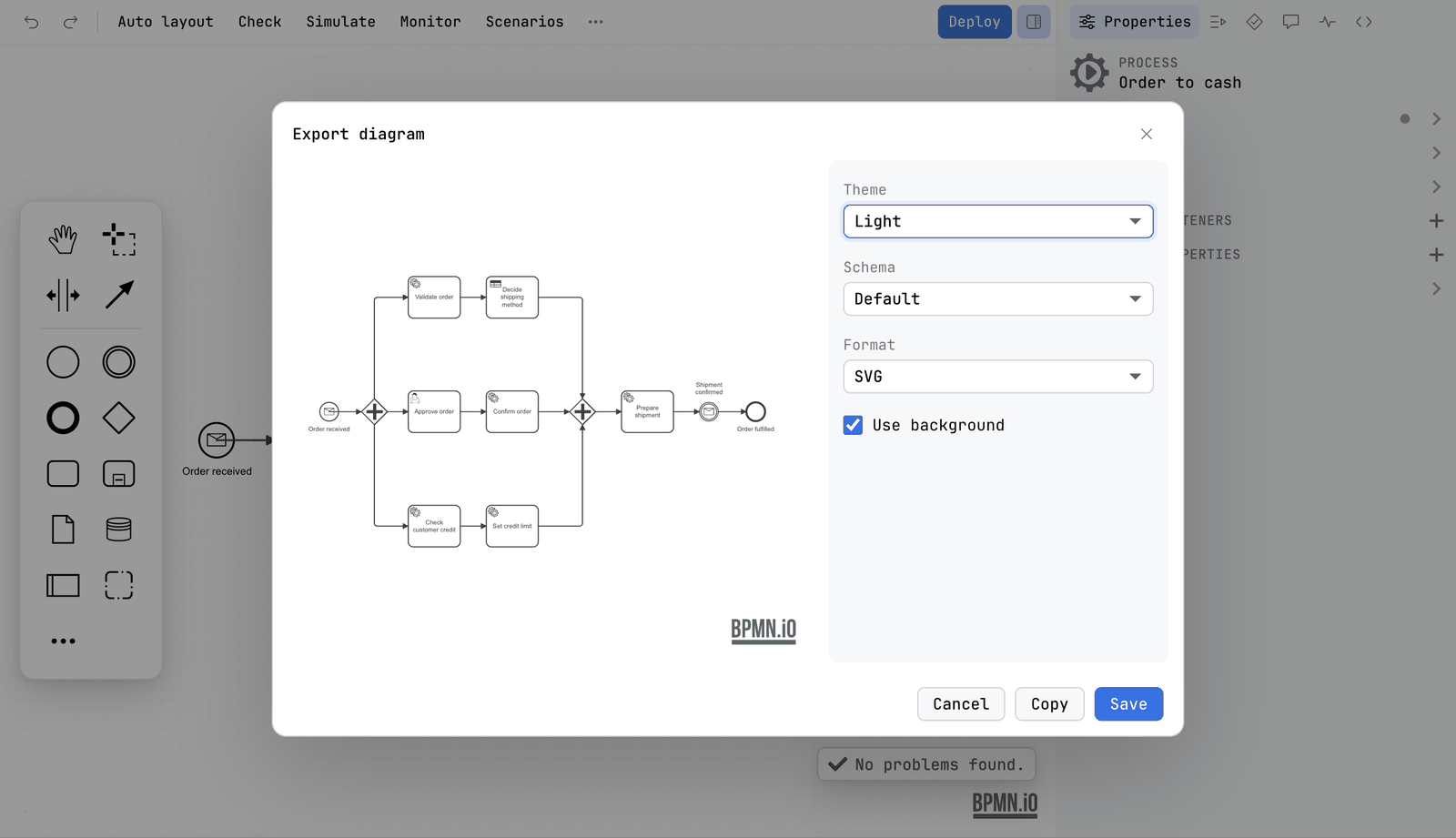
Copy as image is free, and there is no separate menu item for it any more. The picture is written by the host, since the browser clipboard is not available in the editor, so it is ready to paste into a wiki, a chat or an e-mail.
The options
| Option | Choices |
|---|---|
| Diagram | Only shown when the diagram has collapsed sub-processes. Main Diagram, or one of the sub-processes. |
| Theme | Light, Dark, Dracula |
| Schema | Default, or Sketchy, which draws the diagram as if by hand, in the font Architects Daughter |
| Format | SVG, PNG, PDF |
| Use background | Off: the picture is transparent. On: the theme's background colour is painted behind the diagram. |
About the formats
- SVG is written exactly as drawn. It stays sharp at any size and text stays text.
- PNG is drawn at twice the diagram's size. The longer side is capped at 8192 pixels, so large diagrams fit in the browser's limit.
- PDF is that PNG on one A4 page. Portrait or landscape follows the shape of the diagram. It is scaled to fit under a heading.
Without the editor
Export a picture in your tool
JetBrains
The Export… action described above uses the IDE's save dialog. To export every diagram of a project at once, use Run Penstock | Export… in the tool window. It asks for a folder and a format, SVG or PNG. SVG needs nothing, and PNG needs puppeteer installed in the project.
VS Code
The Export… action described above asks where to save the picture. To export every diagram of a project at once, use Run Penstock | Export in the Penstock view. Copy in the Export dialog puts the picture on the clipboard as a PNG, as in the IDE.
Command line
penstock export . --out docs/imgThis writes SVG, drawn by Penstock from the diagram's coordinates. It needs no browser. --format png needs puppeteer in the project. See Every command.
What you see
- A dialog with a live preview that follows your choices.
- After Export, a save dialog, then the file in the folder you chose.
Common problems
- My PNG is blurry when I zoom in.
- PNG is a picture of pixels. Use SVG when you need to zoom.
- The exported picture has no background.
- Turn on Use background.
- I want a file someone can open without a picture viewer.
- Use Share as HTML. It makes one file that opens in any browser, with zoom and click-for-documentation.