 Penstock
Guide / Check your work
Token simulation
Watch a token walk through your process, to check that the flow does what you think.
What it is
A token marks where a process run is at. In simulation, Penstock puts a token on the start event and moves it along the flows. You see which path it takes. Nothing is sent to an engine. It is only a picture, to test your understanding.
Steps
- Press Simulate on the toolbar.
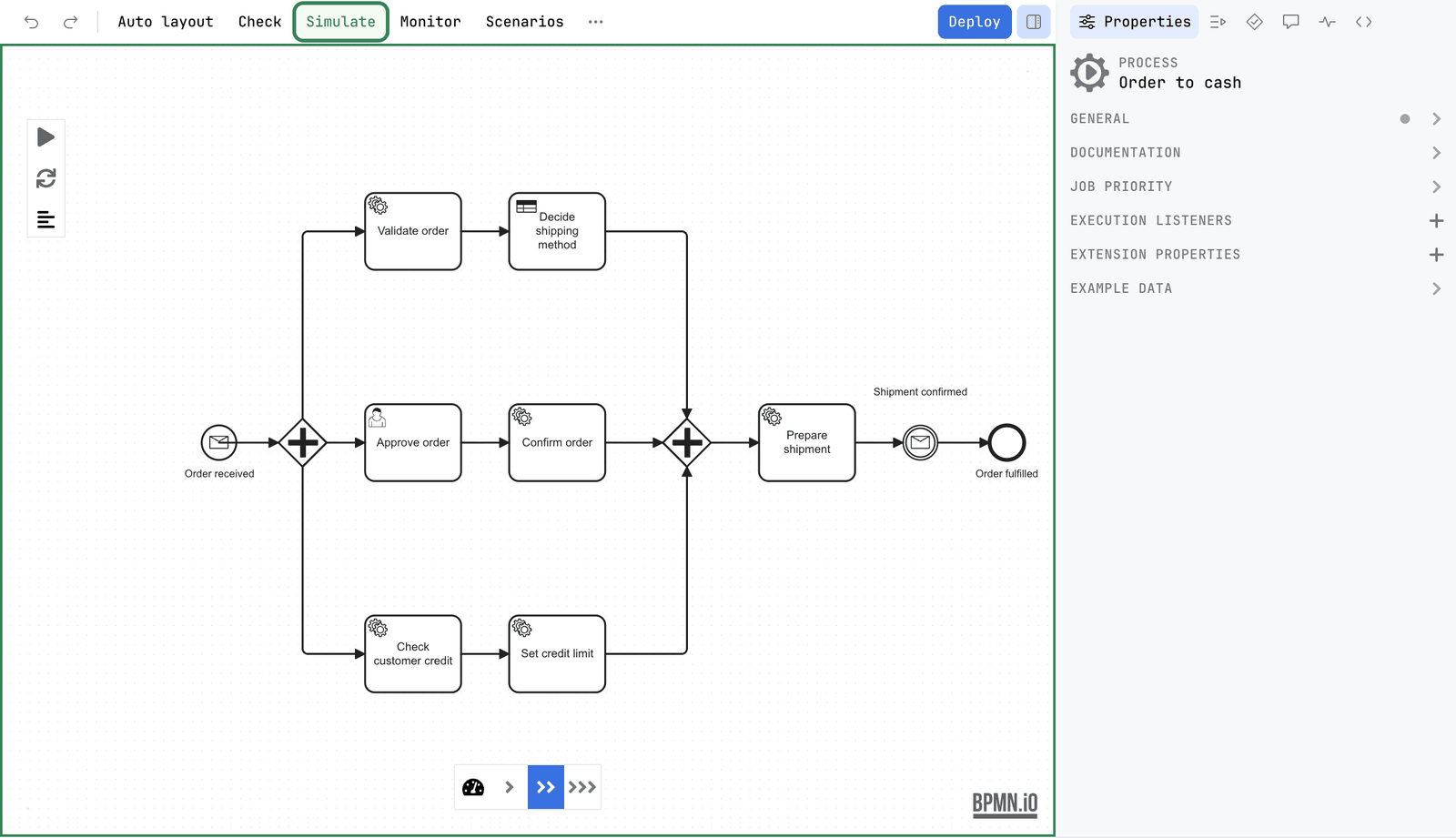
- The canvas gets a green frame. Every start event shows a play button. Press one.
- Watch the token move. At an exclusive gateway you choose which way the token goes.
- Use the speed controls at the bottom to go faster or slower.
- Press Simulate again to stop.
What is switched off while it runs
The simulation library blocks dragging, the pad and direct editing. Penstock blocks the rest: Undo, Redo, Copy, Paste, Delete and Auto layout refuse to run and say Stop Token Simulation before editing the diagram. Without that, an edit made during what looks like a read-only preview would be written to your file like any other.
The bpmnlint markers on the canvas are also hidden while it runs.
What you see
- A green frame around the canvas, a play button on each start event, and speed controls at the bottom.
- A token that moves along the flows.
Common problems
- Undo does nothing.
- It is switched off during a simulation. Stop the simulation first.
- The token stops and never finishes.
- Your process may really be stuck there, for example a parallel gateway waiting for a branch that never arrives. Flow analysis finds this without playing the process.
- Simulation does not call my workers or forms.
- Right. It only moves a token. To run a process against an engine, with mocks, see Scenarios.